Changing Site Settings:
Global colours:
Changing the global colours on Elementor will ensure that you are using the same colour palette throughout your blog when you use Elementor. First we chose a colour palette (Fig 1.) from Adobe colour.
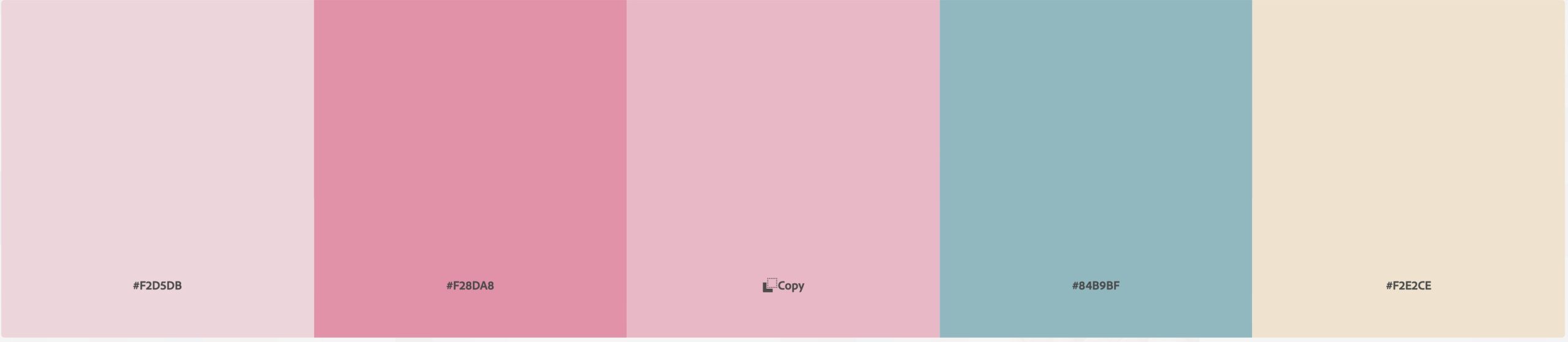
From choosing our palette, we then changed the global colours on our site settings (shown in vid 1).
Global fonts:
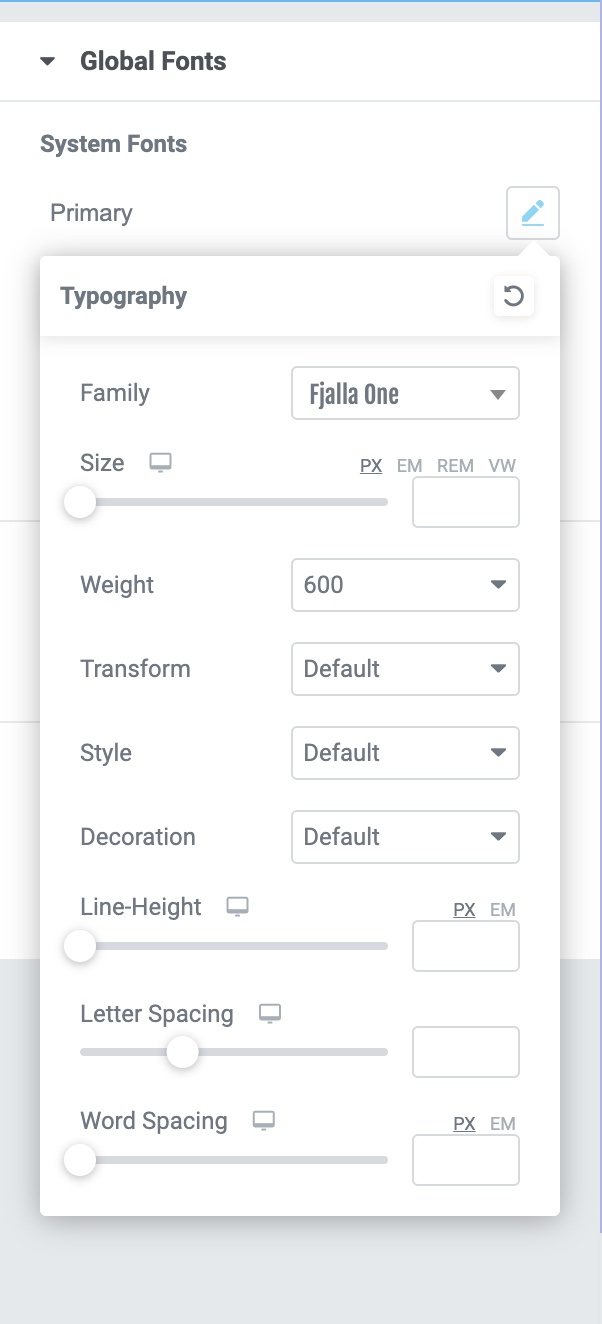
We then chose a font we preferred and changed that under global fonts (underneath global colours) (Fig 2).
Choosing a structure and adding an image:
When you click on the + button you are presented with structure options to choose for your section (shown in fig 4.)

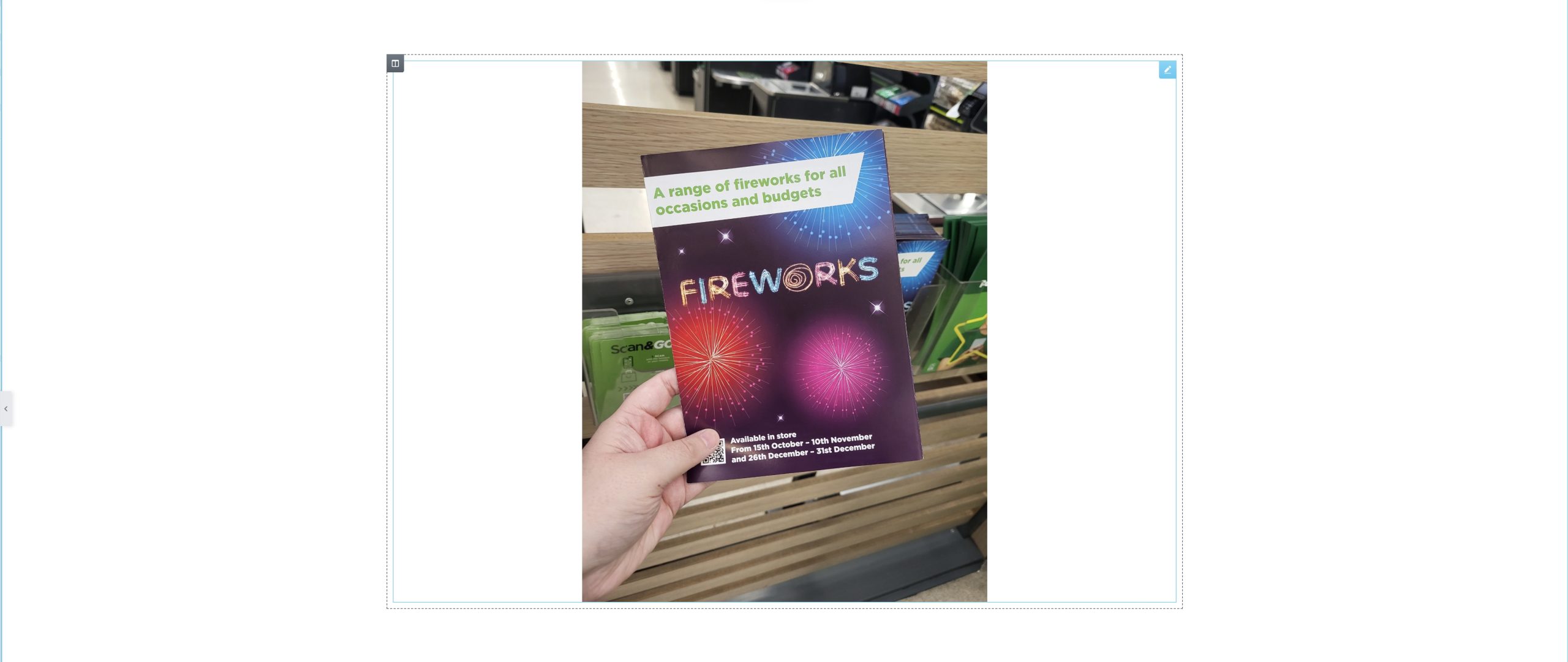
Once chosen, to add an image you drag the widget option that says image from the left hand side and choose an image for the section and you are then able to resize it if you wish to. You can also add a link to the image, so it is clickable on your blog.
Below is a video showing the above:
Icons and shape dividers:
Elementor also gives you the option of using icons and creating a shape divider for the section (Fig 6).

Below is a video showing how to create a shape divider and icons and change the colour using global colours.
Spacers and dividers:
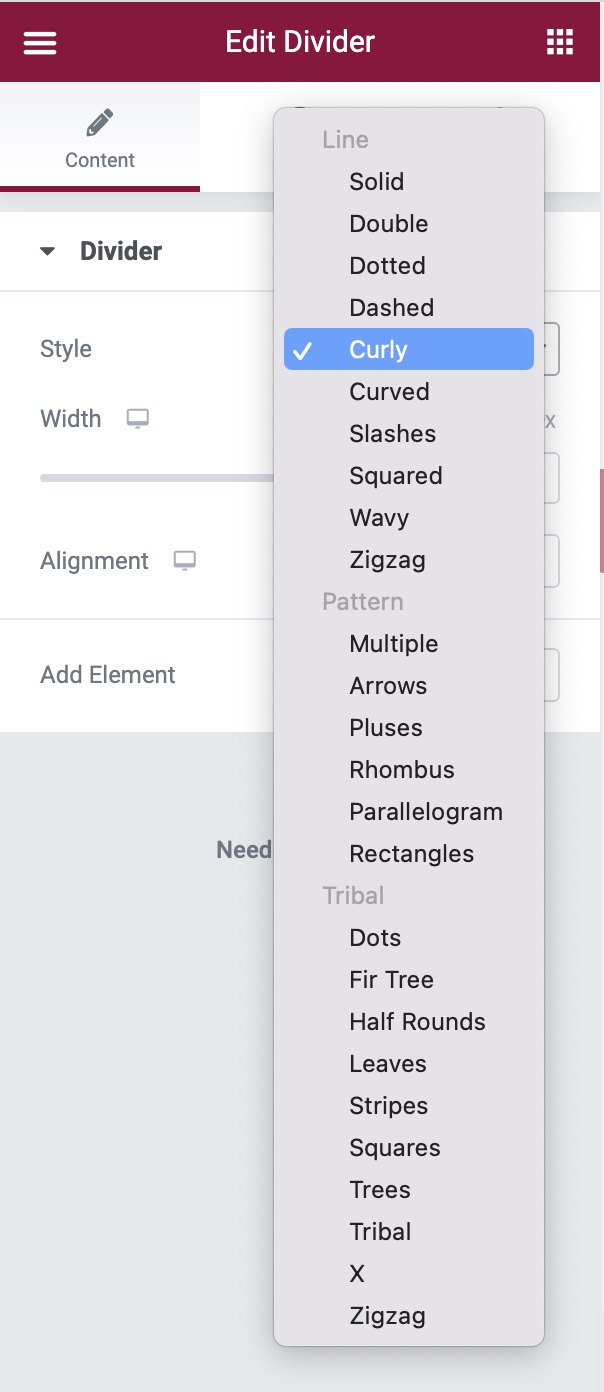
There is also the option of using a divider in elementor. You are given several options on the appearance of your divider to suit the theme.

There is also the option of adding a spacer, which will add a block of blank space to the page/post.

Below is a video showing dividers and blank spaces in elementor:
Item 2:
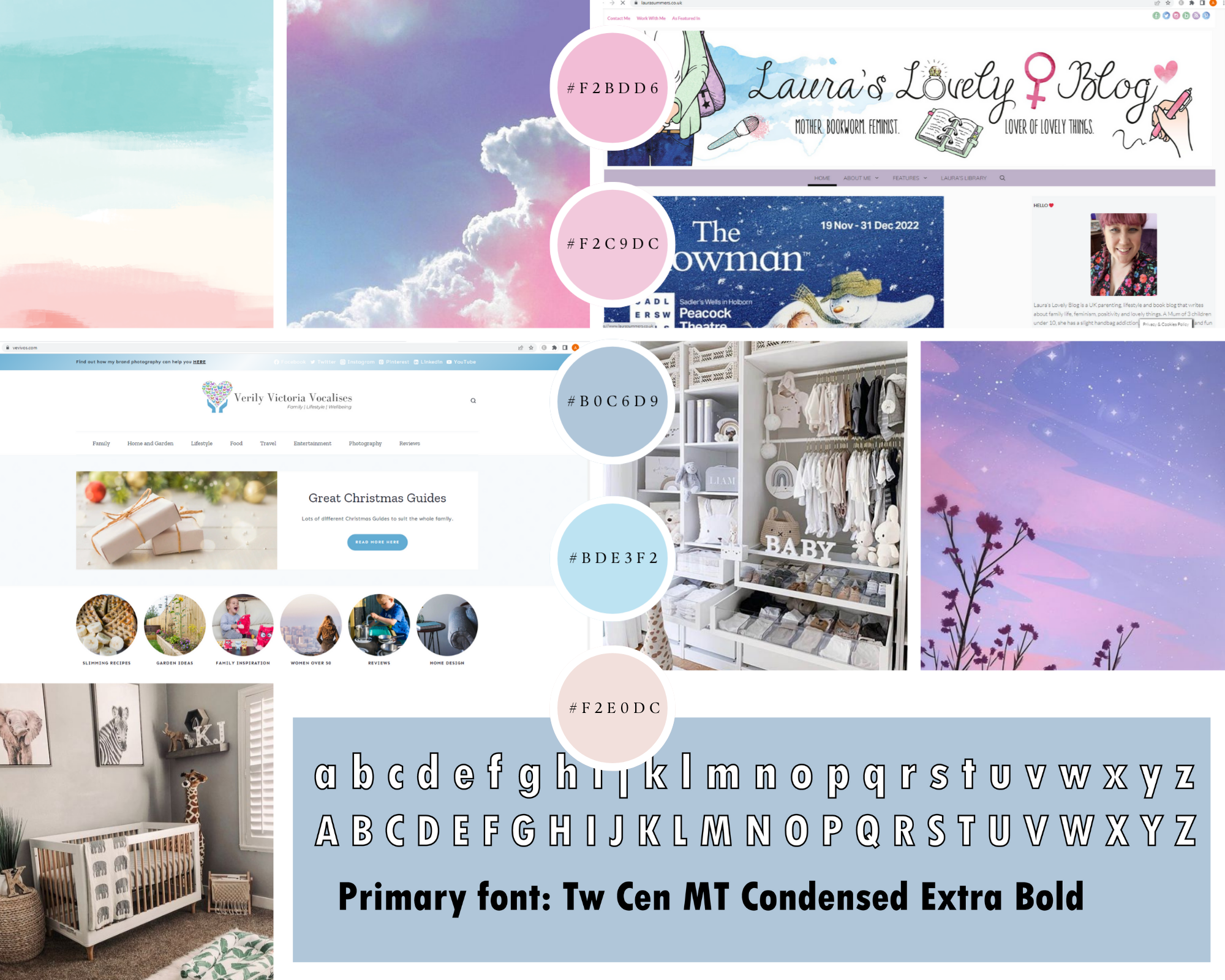
My portfolio assessment is going to have the topic of advice/blog for new parents, with the aim to create an honest blog on the difficulties of being a new parent. With my mood board I have included the font that will be used for my portfolio, colour scheme with indication on what type of illustrations I will be including, colours with HEX codes and inspiration from two current blogs on parenthood (Welton V., 2012) (Not listed L., 2018).
References:
Not listed, L. (2018) Laura’s lovely blog. Available Online: https://www.laurasummers.co.uk/ [Accessed: 08.12.22]
Welton V. (2012) Verily Victoria Vocalises. Available Online: https://www.vevivos.com/ [Accessed: 08.12.22]